

I was ready to start playing Minecraft, but when I launched it on my phone, all I saw was a black screen.
At first, I wondered whether the game had failed to start.
However, I could hear the startup sound, so it seemed that Minecraft was running even though nothing appeared on the display.
Restarting the phone did not help.
I also checked the Minecraft app page in the Google Play Store, but I could not find other people reporting the same problem at the time.
With nothing else to go on, I tried changing a few app settings.
That finally brought the screen back, so I wrote down the steps for anyone who might encounter the same issue.
Minecraft PE Showed a Dark Screen After the Android Update
This is what I actually saw when I launched the game.

There was nothing unusual on the screen because there was simply nothing to see.
It was completely black.
Still, touching the screen produced the sound effects I normally heard when pressing buttons.
That made it seem as though the game had launched and only the picture was missing.
I was able to restore the display by changing an app setting.
More precisely, all I did was clear the app cache.
Whether this works may depend on the device.
I used a ZenFone 3, and the route through the settings screens may be different on other phones.
### Steps I Used to Clear the Black Screen
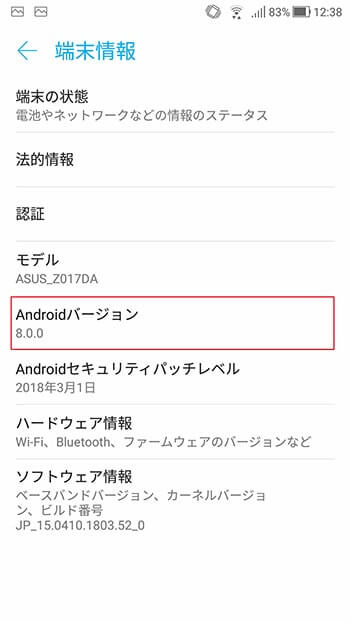
The phone was running Android 8.0.0.
Minecraft began showing the black screen after this update, and the appearance of the Android settings screens had changed as well.
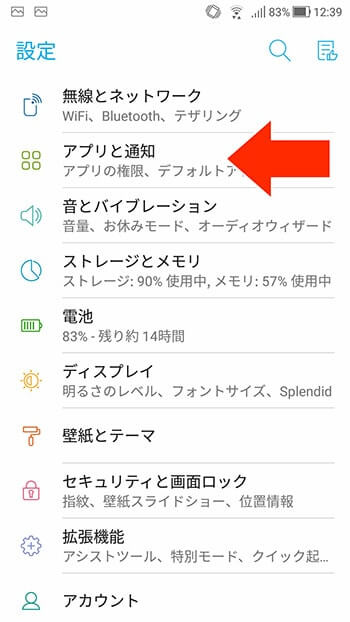
To reach the Minecraft app settings, I first opened the main Android Settings screen.
From there, I tapped **Apps & notifications**.
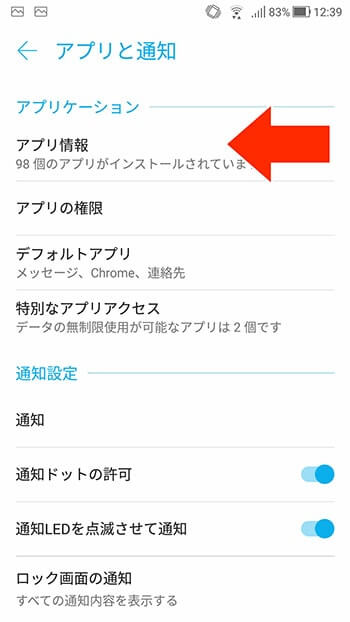
Next, I tapped **App info**.
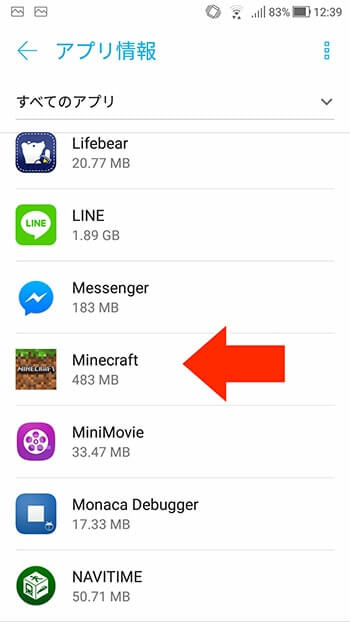
I found Minecraft in the list of installed apps and tapped it.
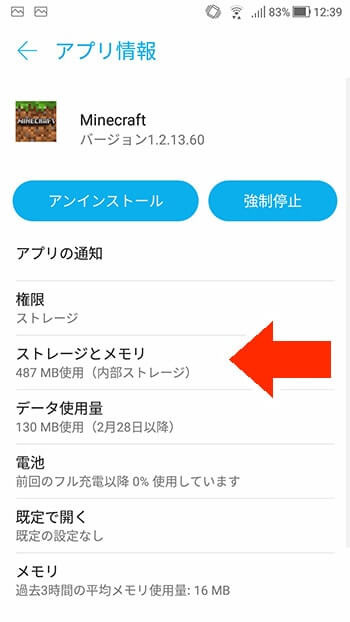
On the Minecraft app information screen, I selected **Storage & memory**.
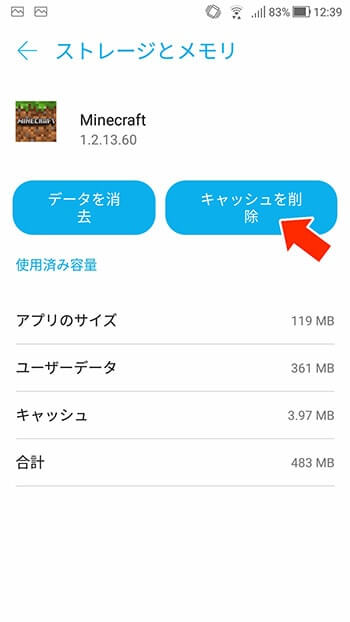
The next screen had a **Clear cache** button, so I tapped it.
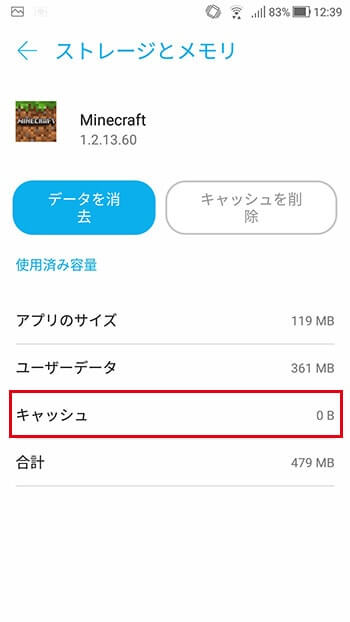
Once the cache value showed zero, the step was complete.
I launched Minecraft again.
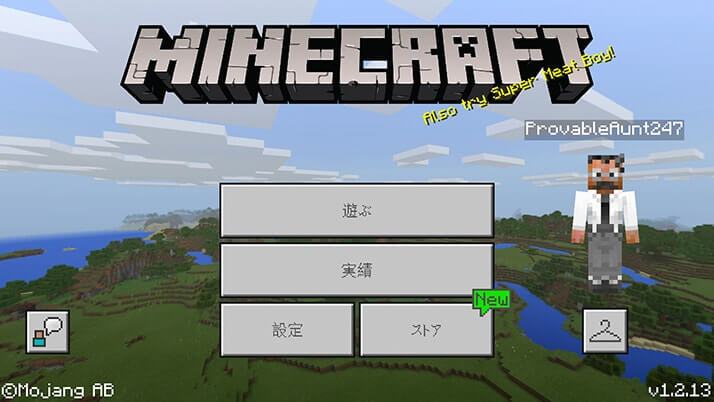
This time, the title screen appeared normally.
Seeing the familiar screen again was a relief.
Clearing the cache may not solve the problem on every device, especially because Android settings and Minecraft have changed since this May 2018 record.
Still, this was the step that restored the display on my ZenFone 3 when the same black-screen symptom occurred.