Minecraft lets you build your own towns and explore the world in your own way.
After playing for a while, you may also want to change the appearance of your character with a different skin.
Many people who upload Minecraft videos to YouTube use original skins.
Seeing them made me wonder whether I could create one myself.
So I decided to make an original skin and apply it to my game.
I wanted the process to be both simple and free.
For this attempt, I used a service called SKINCRAFT to create the skin on a computer, then imported it into Minecraft PE and used it as my character skin.
An Original Skin Makes Minecraft Even More Fun
Minecraft uses skins such as Steve by default.
There were also many free and paid skins available, so it was possible to download one and use it straight away.
Minecraft was already enjoyable that way, but a skin I had made myself gave the character more personality and made the game feel even more fun.

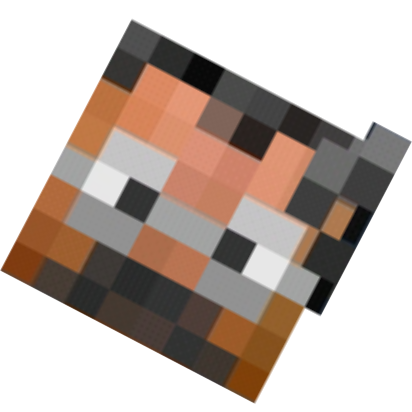
This is the skin I made.
He is an older gentleman, and I think he looks reasonably similar to me in the real world.
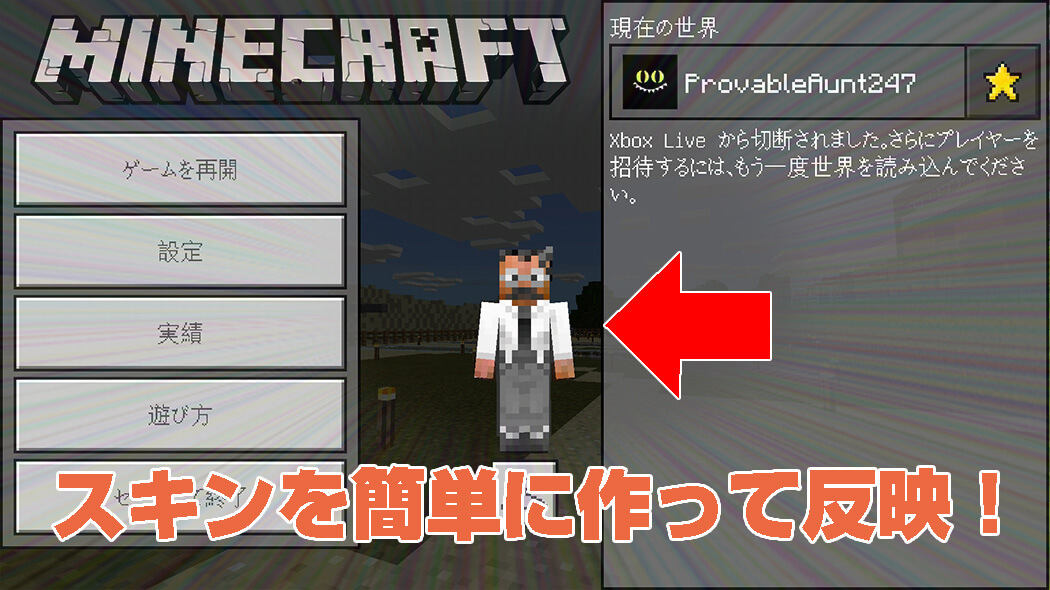
Normally I could see only his hand, but changing the perspective to third person from Settings and then Video in Minecraft PE showed his whole body.
Here is how I made this original skin.
Making a Custom Skin with the Free SKINCRAFT Service
To create the skin, I used the free service SKINCRAFT.
It ran on a computer, which made the editing process efficient.

SKINCRAFT was an overseas site displayed in English.
Even without understanding every word, its layout made the basic controls fairly easy to learn by trying them.
At the time of this article, the site could ask users to install Flash before it would run.

First, I clicked "new SKIN."

This opened the screen shown above.
The process began by choosing a base skin, then adding different parts on top of it.
For OjiCra, I selected "Skin 1."
After choosing the base, I clicked the "GO" button in the lower-right corner.

The editor then showed the selected base on the right side of the screen.
I could turn it into an original skin by adding layers for the head, arms, and other parts.
To add a layer, I clicked the "new LAYER" button.

Before creating a layer, SKINCRAFT offered the choices shown above.
Choosing "CUSTOM" meant drawing the part myself from a blank starting point.
I found it easier to begin with "PRE-MADE" while getting used to the controls.

After choosing PRE-MADE, I selected the part of the body where the layer would be added.
The next screen then offered more detailed parts.
For example, I could choose Head and then Face.

Selecting Head and then Face opened the design screen.
In this example, I chose the "Face 2" design, although it was also possible to select individual parts such as the eyes and mouth.
Colors could be changed with the palette in the lower-right corner.
When I was ready to add the selection as a layer, I clicked "ADD."

The layer was then added to the base and appeared in the list on the left side of the screen.
Editing the list made it possible to adjust details such as the vertical position of a part.
I continued adding layers in this way until the skin was complete.
In my case, the PRE-MADE parts alone did not give me the result I wanted, so I added a CUSTOM layer on top to finish the design.
Once the skin was ready, I clicked "EXPORT/SAVE."

After pressing SAVE, I clicked the ".PNG" button to download the image.
Applying the Custom Skin in Minecraft PE

At this point, all that remained was to open Minecraft PE and apply the skin.
On the screen that appeared after starting Minecraft PE, I tapped the hanger button beneath the character in the lower-right corner.
Before doing this, I transferred the skin image from the computer to the smartphone.

On the skin selection screen, I tapped the button for choosing a new skin and loaded the image I had created.
That completed the setup.
Now I could play in the Minecraft world with my original skin.
Downloading the Original OjiCra Skin
That concludes this record of how I created and applied the original skin.

I do not know how much demand there will be, but I have made the older-gentleman skin available to download.

Thank you for following OjiCra.